Publish inventory, update linked stock, and import paid Shopify orders. App Store approval is pending; refund restocks need review.
Publishing new products is something you start. Automatic refund and cancellation restocks are not included yet.
Available now: connect and test an existing legacy custom app token
New Dev Dashboard apps: connect with your Client ID and secret; access tokens renew automatically
Available now: publish eligible products from inventory when you are ready
Available now: keep linked Shopify quantities updated after supported sales and stock changes
Available now: import paid Shopify orders for connected stores that granted order access
Not included yet: automatic refund and cancellation restocks
Waiting on Shopify: one-click App Store install
Shopify setup guide · Checked October 5, 2026
Connect your Shopify store, step by step
Start here if you have a new Shopify store and a new CardSync Pro account. Shopify now creates custom apps in the Dev Dashboard. Apps created before January 1, 2026 can still use the separate legacy instructions below.
1. Create an app in your store's organization
Sign in as the store owner, or use a Shopify account with app-development and installation permissions.
In Shopify, open Settings → Apps → Develop apps → Build apps in Dev Dashboard. You can also open the Shopify Dev Dashboard.
Select the organization that owns your store. Open Apps → Create app → Start from Dev Dashboard.
Name it CardSync Pro Connection and select Create. This is your store-owned integration app; it is not the public CardSync Pro App Store listing.
2. Configure and release an app version
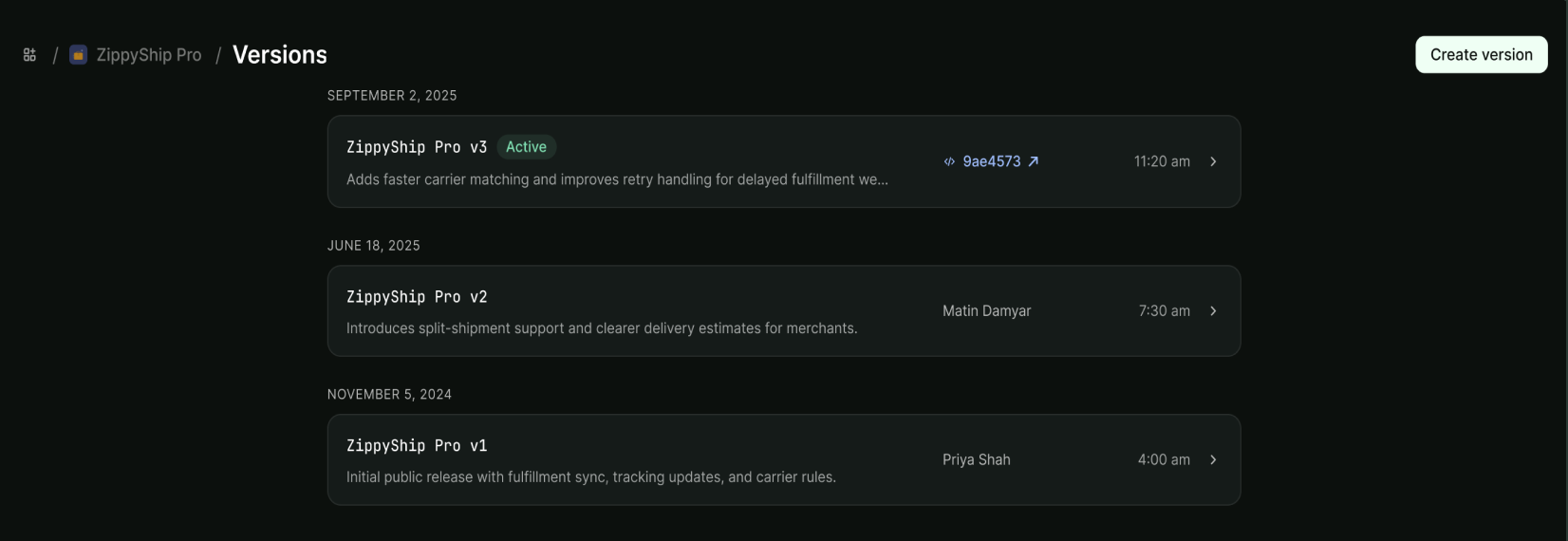
Open Versions and create a version. A version saves your app settings and permissions; it is different from the Shopify API version.
App URL
For this non-embedded, API-only app, use Shopify's default home: https://shopify.dev/apps/default-app-home. If an embedded-app option is shown, leave it off for this setup.
Webhooks API version
Choose the newest stable version available in Shopify's selector. Avoid unstable or release-candidate versions. This selection does not configure CardSync's API requests or automatically enable order webhooks.
Access → Scopes
Select the permissions below, or paste this comma-separated list if Shopify provides a text field:
These allow product publishing, stock updates, location lookup, and paid-order reading. If Shopify groups read and write access, select write access for products and inventory, plus read locations and read orders. Do not request unrelated permissions.
Select Release, optionally name the version, then confirm. Make sure the released version appears as active before installing.
Shopify documentation screenshot, showing its example app. Your app name and version dates will differ. Tap to enlarge. Source: Shopify.
3. Install the released app on your store
Open your app's overview and find the Installs card.
Select Install app, choose your store, review the requested access, and select Install.
Confirm you installed on the intended store. For the client-credentials method, the app and store must belong to the same Shopify organization.
Changing scopes later requires a new released version and approval of the updated permissions in Shopify. Releasing a version alone does not grant the new access.
4. Connect the installed app to CardSync Pro
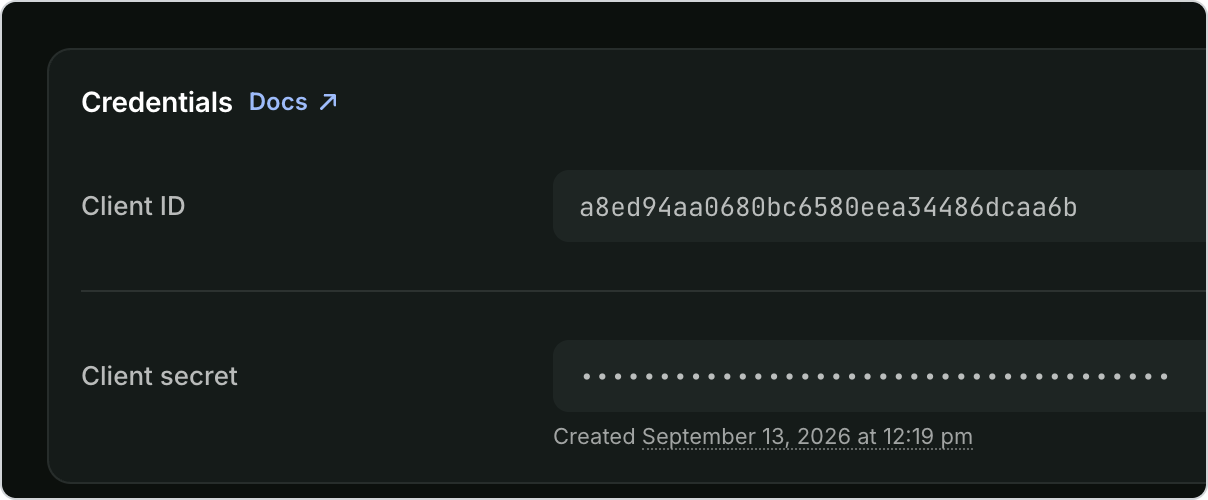
Open the app's Settings / App settings → Credentials. New Dev Dashboard apps show a Client ID and a Client secret. Neither is an Admin API access token.
Shopify documentation screenshot with the secret hidden. Keep yours hidden when sharing screenshots. Tap to enlarge. Source: Shopify.
Choose Dev Dashboard app — automatic token renewal.
Enter your permanent your-store.myshopify.com domain, then copy the Client ID and Client secret into their matching fields. Do not email or message your secret.
Select Test connection and confirm the returned store name is yours. Then select Save connection.
Select Test connection again to verify the saved credentials. You can now configure inventory sync; connecting alone does not publish your entire inventory.
Access tokens expire after 24 hours. CardSync Pro renews them automatically before use, so you do not need to generate or paste tokens each day. If you rotate the app secret, uninstall the app, or change its permissions, update the connection here.
Already have a legacy custom app?
Use this path only for an existing app created in Shopify admin before January 1, 2026 that supplies an Admin API access token. You cannot create a new legacy app today.
Open the existing app from Shopify's Develop apps / Legacy custom apps area. Confirm it has the scopes listed in step 2.
Use its Admin API access token. If it was already revealed, use your securely saved copy; do not uninstall a working integration just to look for it.
In CardSync, open Sales Channels → Shopify setup. Choose Existing legacy Admin API access token, then enter the permanent your-store.myshopify.com domain and token in their matching fields.
Select Test connection. Confirm the returned shop is yours, resolve any missing permissions, then select Save connection.
Test the saved connection again. Only then review inventory publishing and sync settings. A successful connection does not automatically publish your entire inventory.
Sell linked inventory in Shopify POS
Connect the same Shopify store used by your register. In Sales Channels, verify paid-order access and resolve any connection warnings.
Publish or link the exact inventory variant in CardSync. For eBay updates, link that same inventory item to its eBay listing and enable quantity sync.
In Shopify, make the product available to Point of Sale, stock the register location, and set a unique barcode on the matching variant.
In Shopify POS, select that store and location. Scan the variant barcode with the built-in scanner, confirm the item and quantity, then complete checkout.
Return to CardSync and refresh inventory. Check Inventory Sync for completed jobs or errors, then verify the linked eBay quantity. Processing may take a short time after payment.
Checkout and payment stay in Shopify POS. A cart alone does not deduct CardSync inventory. Do not enter a second manual sale in CardSync for the same checkout. This workflow uses your existing store connection; the public Shopify app listing remains awaiting approval.
Check your Shopify permissions and selected organization. Ask the store owner to create or install the app if your account lacks access.
Where is Reveal Admin API access token?
That belongs to legacy apps. New Dev Dashboard apps use Client ID and Client secret; return to step 4.
Connect Shopify says the app is unavailable.
The dedicated-store authorization button is not a general installation route for a fresh merchant. Public App Store installation is awaiting approval. Use the Dev Dashboard app credential form in step 4.
Missing scopes after releasing a new version?
Approve the updated permissions on the installed app in Shopify, then test again. Do not uninstall an existing working app.
Connected yesterday, expired today?
Replace the manually pasted token using the Dev Dashboard app method in step 4. Save the Client ID and Client secret so CardSync Pro can renew access automatically.
The domain is rejected.
Use the permanent .myshopify.com domain from Shopify Settings → Domains, not your custom storefront URL or an admin.shopify.com page address.
My fresh CardSync account cannot use Shopify.
Check the Shopify capability included in your current CardSync plan. Creating an account or installing the custom app does not change plan access.